
Did you know DLL files are the cause of most common Windows errors? It’s not surprising, considering DLL files essentially run programs and applications on your computer. Short for dynamic link library, DLL files are stored in the Windows registry and are called upon to assist executable or .EXE programs to function. Think of DLL files as a massive library in a Windows operating system that contains code and data, some shared by more than one program, others specific to certain programs or applications.
For example, Comdlg32 is a DLL file in charge of common dialog box functions. For example, any program that calls for an “Open” dialog box relies on this DLL to perform that function. Another familiar DLL file error is MSVBVM, short for Microsoft visual basic virtual machine. A standard DLL file on most Windows operating systems, when the MSVBVM becomes damaged, Windows is unable to communicate with visual basic programming language. Other common DLL files allocate system memory; manage hardware; control synchronization of data between applications on different servers or between a PC and a handheld device; ensure properties of graphics cards display properly; and assist with displaying videos and graphics when games or videos are being played.
But what happens if a DLL file becomes damaged, corrupt, or is completely missing? A damaged or corrupt DLL file typically results from an interrupted installation or update, spyware, or a virus that invades your computer. A missing DLL could be caused by an incorrect DLL name, path location, or application coding error. Or the DLL file could be missing altogether because frequent installs and uninstalls overwrote a still needed old DLL version with a new one. Windows makes you aware of a DLL problem through a pop-up error message. For the user, a DLL file error means one or more programs will malfunction or not run at all. More serious situations can cause a computer to crash.
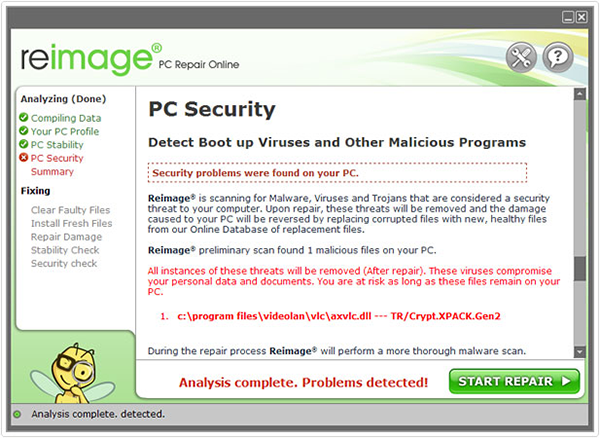
While most people try to fix DLL error messages by rebooting their computers, that action is futile. DLL file errors can be fixed only by replacing the applicable file. A computer technician or in-house IT technician can do the fix manually, but it’s a precise, time-consuming and costly process. A safer, faster and cost-effective solution is an automated repair, replace and restore process. Currently, there is only one option for replacing DLL files and restoring your computer to working condition. That option is Reimage, which uses its patented technology to reverse damage to DLL files by replacing them with healthy ones. Reimage is the only Windows repair product and registry cleaner software with this remove, replace and restore technology.
Reimage scans all operating system files and recognizes any problems by comparing the condition of your computer system’s elements to those stored in its Repository, an online database containing more than 25,000,000 flawless files and components for Windows operating systems, including DLL files. If the scan finds any DLL file problems, the repair portion of Reimage Windows repair automatically fixes them. Reimage removes damaged or missing DLL files and replaces them with exact versions from its Repository. Think of the Repository as a spare parts server containing pure Windows registry files and components for Windows XP, Vista and Window 7 operating systems.
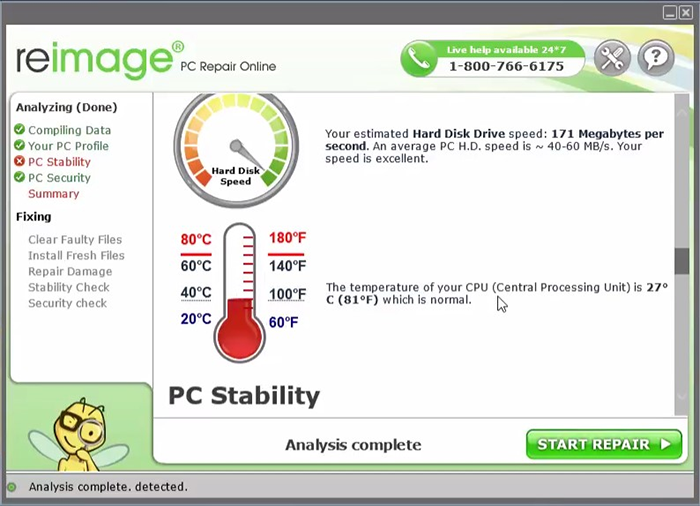
If the DLL problem is a result of malware, Reimage automatically repairs the virus damage and replaces the affected DLL files with applicable versions from its online repository so your Windows registry is restored to the original operating condition before the malware struck. The research and development team at Reimage stays current on viruses and adds patches and fixes to the Repository to address any Windows error.
With Reimage, the process for fixing DLL file errors is done completely online. The only thing necessary is a broadband Internet connection.
When it comes to missing or corrupt DLL files, Reimage is the source for obtaining files and essential components, including any updates made to Windows files, to repair your Windows operating system. You can also use Reimage as preventive maintenance to scan your computer on a regular basis and optimize its performance accordingly.
* Reimage scanner, published on this site, is intended to be used only as a detection tool. More info on Reimage System Requirements. To use the removal functionality, you will need to purchase the full version of Reimage. If you wish to uninstall Reimage, click here.